FAQ
Can I try it before paying?
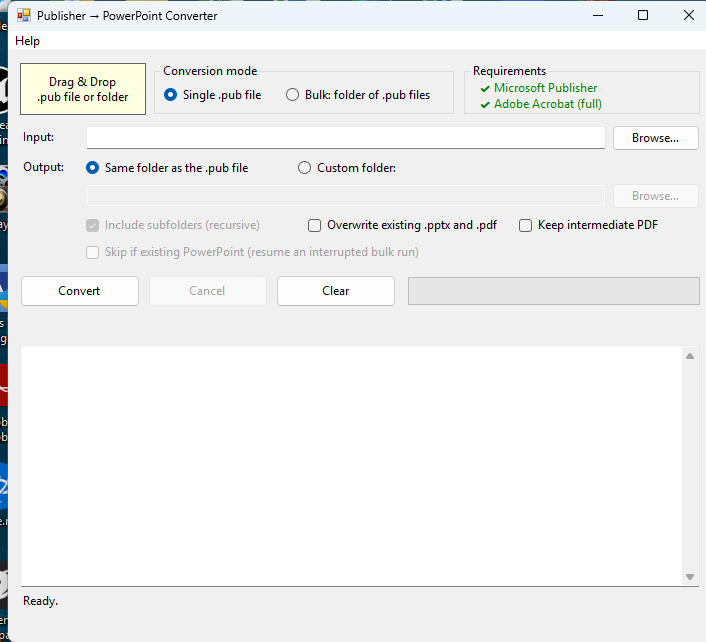
Yes — your first 3 conversions are free, so you can check the output on your own publications before buying anything. You can also drag your folder onto the window before buying: PubBridge counts the .pub files inside it and tells you how many are in the pre-1997 format that needs Publisher 98. Only successful conversions count against them; files that are skipped, fail, or are too old for Publisher to open are never charged. The free conversions are tracked on your PC, so they are not tied to your Microsoft account.
Packs can be bought once your free conversions are used. That way nobody pays before seeing PubBridge work with the Publisher and Acrobat on their own PC.
Is there a subscription?
No. The app is free to install, and you buy conversion packs only when you need them. Credits never expire, and larger packs cost less per conversion — up to 50% less on the 10,000 pack.
Do conversions require an internet connection?
Yes — your conversion balance lives with your Microsoft account, and the app verifies it as it works. The conversion itself still happens entirely on your PC; only the credit balance is checked online.
If PubBridge says there is a problem connecting to the Microsoft Store, close the app and open it again, or wait a few minutes and start the conversions again. Files that weren't converted are never charged, and with “Skip if existing PowerPoint” checked (the default) a re-run picks up only the files still missing.
Does it need a JavaScript runtime or Node.js?
No. The small bridge script that automates Acrobat's converter runs inside Acrobat's own built-in JavaScript engine. Nothing extra is installed on your system.
Is the output really editable?
Yes — slides contain real text boxes and shapes, exactly as if you had exported the PDF from Publisher and used Acrobat's “Convert to PowerPoint” by hand. Fidelity of exotic elements (WordArt, unusual effects) is determined by Acrobat's converter.
Why does it need Acrobat Pro and Publisher installed?
PubBridge doesn't reimplement either format — it orchestrates the two applications that understand them best. That's why its output matches the manual workflow instead of approximating it.
Both have to be the full versions: a perpetual desktop Microsoft Publisher (2007 or later), and Adobe Acrobat Pro — Acrobat Standard won't work. The free Acrobat Reader can't export to PowerPoint, and Publisher 98 on its own can't be automated, so PubBridge doesn't count either — and won't sell conversions until both requirements pass.
I have Microsoft 365. Will PubBridge work?
Not with Microsoft 365 alone. Since 1 October 2026 Microsoft 365 no longer includes Publisher, so there is no Publisher for PubBridge to drive. You need a perpetual Publisher: the one-time-purchase Publisher 2016, 2019 or 2021, or an Office Professional / Professional Plus edition that includes it. It can sit alongside your Microsoft 365.
The Requirements panel tells you which you have. Green means a perpetual licence was found. Red means Publisher is missing or only licensed through Microsoft 365, and converting and buying stay blocked. Amber means Publisher is installed but its licence type couldn't be read — you can still use your free conversions, and if they convert, you can buy packs as normal.
Which Publisher files can it convert?
It opens each file with your installed Microsoft Publisher, so it converts anything your Publisher can open — in practice, .pub files from Publisher 2000 through the last Microsoft 365 version. Your installed Publisher needs to be 2007 or newer, which is when it gained the built-in PDF export the converter relies on, and it must be a perpetual licence, since Microsoft 365 no longer includes Publisher.
Pre-1997 files are handled too. Publications from roughly mid-1990s Publisher and earlier are refused outright by modern Publisher as an unsupported format. If you also have the old Microsoft Publisher 98 installed, PubBridge drives it to re-save those files into a format current Publisher understands and then converts them in the same run — so a mixed archive goes through in one pass instead of being re-saved by hand, file by file. Without Publisher 98 they are simply counted as Too old and listed for you, never failing silently.
What happens if a batch is interrupted?
Nothing is lost: completed conversions are already on disk. Re-run the same folder with “Skip if existing PowerPoint” checked — it is on by default — and the app converts only the files that are still missing.
Why do progress dialog boxes pop up during conversion?
Those belong to Microsoft Publisher ("Publishing…") and Adobe Acrobat ("Preprocessing file for export") — the two applications doing the actual work. They're normal, they show real progress, and they close on their own as each step finishes. PubBridge keeps them gathered at one consistent spot on screen so they stay out of your way; there's no need to click or cancel them. If a dialog reports an error rather than progress, that one matters — the log window will show the affected file.
Why does a “Microsoft Publisher Security Notice” pop up?
Publisher shows that notice, with Enable and Disable buttons, when a publication contains “active content” — usually an object embedded from another program years ago, such as the Flash drawings found in many files from around 2000, and sometimes macros. It is Publisher's own safety check, not a problem with your file.
PubBridge answers Disable for you, so the notice closes by itself within a moment — there's no need to click it. The content is never run, and nothing is lost: Publisher still shows those objects as they were last displayed, so they come through in the presentation. Macros are never run during conversion either. Versions before 1.5 left the notice waiting for a click and could leave a stuck one behind; updating the app from the Microsoft Store fixes that.
Why does my default printer briefly change during a batch?
Publisher consults the default printer while exporting, and an unreachable network printer can stall it. During a batch the app temporarily selects a local software printer (like Microsoft Print to PDF) and restores your printer automatically when the batch ends.
Does it upload my documents anywhere?
No. Conversion happens entirely on your PC using your installed applications. Nothing about your files leaves the machine.
What is the Acrobat bridge script, and why does PubBridge install one?
Adobe Acrobat only accepts a scripted PDF-to-PowerPoint export from a trusted "folder-level" JavaScript file, and it only loads those from one fixed per-user folder: %APPDATA%\Adobe\Acrobat\Privileged\DC\JavaScripts. So before your first conversion PubBridge places a single small file there, AuraPdfBridge.js, and Acrobat loads it the next time it starts. You are shown the full path and asked to agree before anything is written. The file contains no personal data, makes no network connections, and does nothing at all unless PubBridge is driving Acrobat. It is the only place outside PubBridge's own data folder that the app writes to — nothing machine-wide, nothing in the registry, nothing in Program Files or Windows.
How do I remove the Acrobat bridge script?
In the app, choose Help → Remove Acrobat bridge script. It deletes the file, and tidies up the folder only if that file was the only thing in it — Acrobat owns that folder, so anything else in it is left untouched. Conversions stop working until it is reinstalled, which happens automatically (with the same prompt) the next time you convert.
If you installed the .exe version, uninstalling removes the script for you. If you installed from the Microsoft Store, Windows uninstalls Store apps itself and runs no code from us, so the file stays behind — use Help → Remove Acrobat bridge script before uninstalling, or delete that one file by hand afterwards.